Skip to main contentSkip to main content
~/profileLIVE
Asad Saeed
Asad SaeedOpen to WorkSenior Frontend Engineer | MERN Stack Developer
01

Identity

Residence
Lahore, Punjab
Nationality
Pakistani
City
Lahore
Age
26
02

Languages

  • English96%
  • Urdu100%
03

Expertise

React.js95%
Next.js95%
JavaScript / TypeScript95%
HTML5, CSS395%
Tailwind, Bootstrap, Shadcn UI95%
Material UI, SCSS, Styled Components90%
Redux Toolkit, React Query, Zustand92%
REST & GraphQL APIs92%
Git, GitHub, Bitbucket98%
Node.js, Express.js, NestJS85%
MongoDB, PostgreSQL, Prisma80%
WebSockets, Real-Time Systems82%
AI & Automation (n8n, OpenAI)78%
04

Stack

4949 technologies
ReactJSNextJSJavaScriptTypeScriptReact NativeNestJSNode.jsExpress.jsMongoDBPostgreSQLMySQLPrisma ORMFirebaseREST APIGraphQL APIApollo ClientWebSockets / Socket.ioReduxRedux ToolkitReact QueryZustandTailwind CSSShadcn UIMaterial UIBootstrapSCSSCSSModule.cssStyled ComponentsFramer MotionStripe Payment Integrationn8nOpenAI APIAWS LambdaDockerVercelNetlifyGitHub Actions (CI/CD)JestGitGitHubBitbucketPostmanSwaggerJira SoftwareStrapiSanityFigmaAdobe XD
05

Contact

Email
asadsaeed.dev@gmail.com
Phone
+92 3017631644·+92 478730644
Download Resume
HomeSkillsBackgroundPortfolioContact
Chat with Asad
All Posts
Docker for Full-Stack Developers: Complete Guide (2026)

Docker for Full-Stack Developers: Complete Guide (2026)

DOCKERDEVOPSSOFTWARE ENGINEERINGWEB DEVELOPMENTPROGRAMMINGASAD SAEED
October 19, 202612 min readBy Asad Saeed

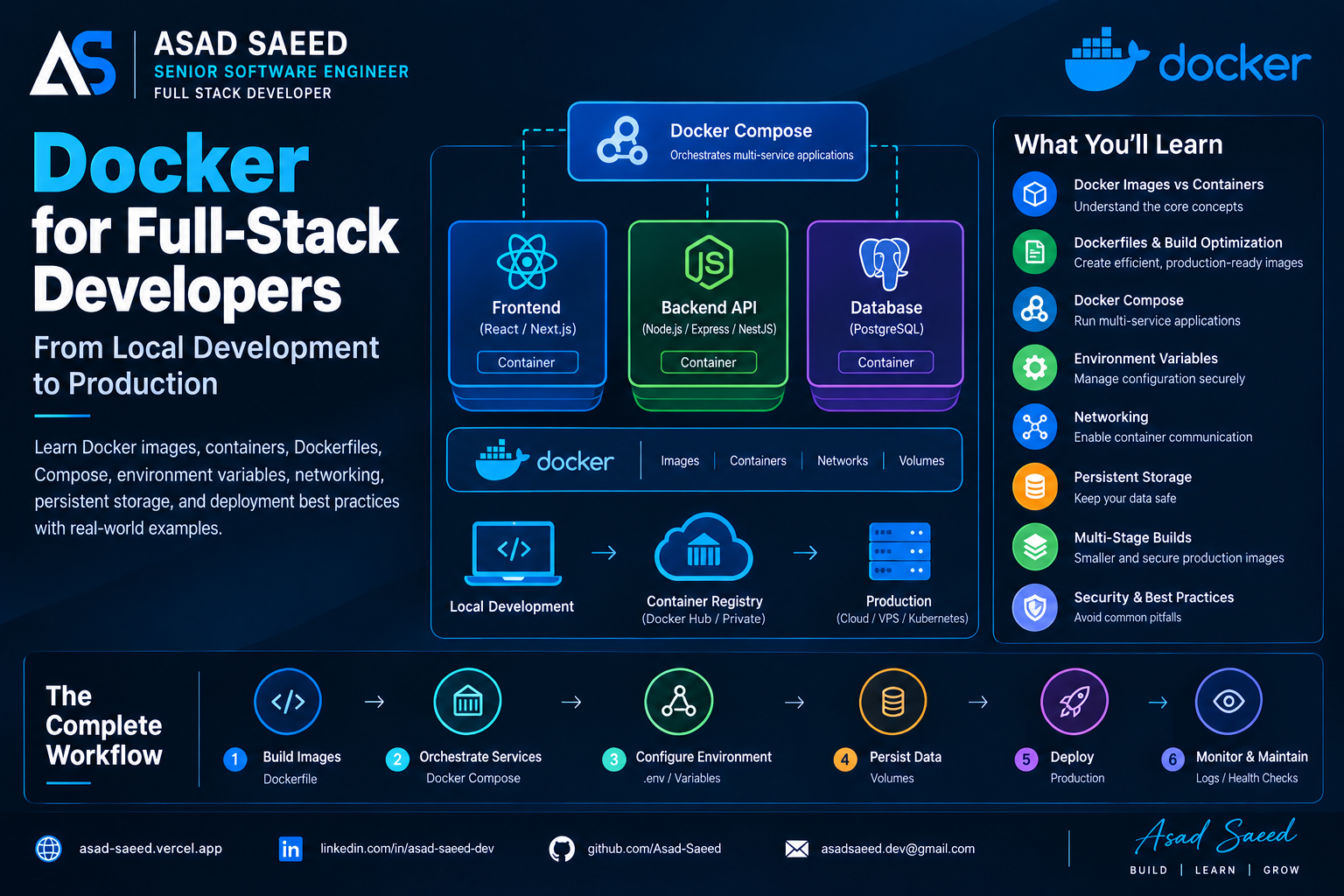
Learn Docker for full-stack development with practical examples covering Dockerfiles, images, containers, Docker Compose, networking, environment variables, volumes, and production deployment.

Introduction: Why Docker Matters

Have you ever built an application that worked perfectly on your machine but failed when another developer tried to run it?

Maybe the Node.js versions were different. Maybe a database wasn't installed. Or perhaps environment variables and dependencies were configured differently between development and production.

This is one of the problems Docker helps solve.

Docker lets you package an application and its runtime dependencies into a container image, making it easier to run consistently across compatible environments.

For full-stack developers working with React, Next.js, Node.js, Express, NestJS, PostgreSQL, or MongoDB, Docker provides a practical way to manage application environments and dependencies.

In this guide, we'll build an understanding of Docker from the fundamentals to production-oriented practices.

We'll cover:

  • Docker images vs. containers

  • Dockerfiles and image caching

  • Docker Compose for full-stack applications

  • Environment variables and secrets

  • Container networking

  • Persistent storage and database volumes

  • Multi-stage production builds

  • Security, troubleshooting, and deployment best practices

1. What Is Docker?

Docker is a platform for building, distributing, and running applications in containers.

A container packages an application with the files, libraries, and runtime dependencies it needs. Containers run as isolated processes while sharing the host operating system's kernel.

Unlike a traditional virtual machine, a container doesn't normally need to run a separate guest operating system kernel. This often makes containers lighter and faster to start.

Imagine a full-stack application with three components:

  • React frontend

  • Node.js backend API

  • PostgreSQL database

Without Docker, each developer may need to install and configure these dependencies separately.

With Docker, you can define how each component should be built and run, then coordinate them using Docker Compose.

Why developers use Docker

Consistency: Reduce differences between local, testing, and production environments.

Isolation: Run applications with different runtime versions without installing every dependency directly on the host.

Reproducibility: Keep environment setup in version-controlled configuration files.

Simpler onboarding: Help new developers start a project using documented commands.

Service separation: Run the frontend, API, database, and cache as independent services.

Deployment flexibility: Package applications in a format supported by many container platforms.

Docker doesn't automatically make an application scalable or secure. Those outcomes still depend on application design and deployment practices.

2. Docker Images vs. Containers

These are two of the most important Docker concepts.

Docker image

An image is a packaged, read-only template used to create containers. It can contain a base filesystem, runtime, application code, dependencies, and startup configuration.

Docker container

A container is a running or stopped instance created from an image. It adds a writable layer and runtime state on top of the image.

Think of an image as a packaged recipe and a container as an instance created from that recipe.

ImageContainerPackaged templateInstance created from an imageBuilt or pulled from a registryCreated, started, stopped, or removedContains image layersUses image layers plus a writable layerCan be shared through a registryRuns on a container host

Try Docker

Run a simple test container:

docker run --rm hello-world

List running containers:

docker ps

List all containers, including stopped ones:

docker ps -a

List locally available images:

docker images

These commands help you understand what Docker has downloaded, created, and started.

3. Understanding Docker's Core Components

Before creating an image, understand the tools involved.

  • Docker Engine: Runs and manages containers, images, networks, and storage.

  • Docker CLI: Lets you interact with Docker through commands.

  • Dockerfile: Defines how to build an image.

  • Docker Compose: Defines and coordinates multi-service applications.

  • Container registry: Stores and distributes images, such as Docker Hub or a private registry.

A typical workflow looks like this:

Application Source Code
          |
          v
      Dockerfile
          |
          v
      Docker Image
          |
          v
    Image Registry
          |
          v
   Deployment Server
          |
          v
   Running Container

Docker Compose is particularly useful during development because it coordinates the services an application needs.

4. Creating Your First Dockerfile

A Dockerfile is a text file containing instructions for building a Docker image.

Assume your Node.js backend has this structure:

backend/
├── src/
│   └── server.js
├── package.json
├── package-lock.json
└── Dockerfile

Create a file named Dockerfile:

FROM node:24-alpine

WORKDIR /app

COPY package*.json ./

RUN npm ci

COPY . .

EXPOSE 3000

CMD ["npm", "start"]

Let's understand the instructions.

FROM selects the base image. This example uses Node.js 24 on Alpine Linux; choose a supported version compatible with your project.

WORKDIR sets the working directory inside the image.

COPY package*.json ./ copies the package manifest and lockfile before the rest of the source code.

RUN npm ci installs dependencies using the lockfile.

EXPOSE 3000 documents the expected application port. It does not publish the port to the host.

CMD defines the default command executed when the container starts.

This example assumes your package.json includes a working start script and your application listens on port 3000.

Build and run it

From the backend directory:

docker build -t my-api .

Start the container:

docker run --rm -p 3000:3000 my-api

You can then test the application at http://localhost:3000, assuming the server is running correctly.

Make sure the server listens on an address accessible from outside the container, typically 0.0.0.0.

For example:

app.listen(3000, "0.0.0.0");

If the application listens only on 127.0.0.1 inside the container, requests forwarded from the host may fail.

5. Docker Image Layers and Build Optimization

Docker can reuse cached build steps when the relevant instructions and inputs haven't changed.

Consider this order:

FROM node:24-alpine

WORKDIR /app

COPY package*.json ./

RUN npm ci

COPY . .

CMD ["npm", "start"]

Why copy the package files before the rest of the application?

Imagine you change only src/server.js. Your dependencies haven't changed, so Docker can often reuse the cached dependency-installation step.

If you copy the entire application before installing dependencies, changing an ordinary source file may invalidate the cache for the installation step.

For larger projects, this can make builds unnecessarily slow.

Use .dockerignore

Create a .dockerignore file:

node_modules
npm-debug.log
.git
.env
.env.*
!.env.example
coverage
dist

Adjust these patterns to your build process. If the image requires a precompiled dist directory, for example, don't exclude it without changing how the application is built.

A .dockerignore file reduces unnecessary build context, prevents local dependencies from overwriting container dependencies, and helps avoid copying sensitive files into images.

6. Development vs. Production Dockerfiles

Development and production have different needs.

Development often benefits from hot reloading, source mounts, debugging tools, and quick iteration.

Production generally needs a smaller runtime image, only the necessary dependencies, predictable startup behavior, and fewer unnecessary tools.

A useful way to separate these concerns is a multi-stage build.

Example: Multi-stage Dockerfile for a TypeScript API

# Build stage
FROM node:24-alpine AS build

WORKDIR /app

COPY package*.json ./

RUN npm ci

COPY . .

RUN npm run build

# Production dependencies
FROM node:24-alpine AS production-deps

WORKDIR /app

COPY package*.json ./

RUN npm ci --omit=dev

# Runtime stage
FROM node:24-alpine AS runtime

WORKDIR /app

ENV NODE_ENV=production

COPY --from=production-deps /app/node_modules ./node_modules
COPY --from=build /app/package.json ./package.json
COPY --from=build /app/dist ./dist

USER node

EXPOSE 3000

CMD ["node", "dist/server.js"]

This example assumes your TypeScript build produces dist/server.js. Adapt the entry point and copy any additional runtime assets your application needs.

Why use multi-stage builds?

  • Smaller runtime images: Exclude build tools and development dependencies.

  • Cleaner separation: Keep build-time and runtime requirements distinct.

  • Reduced attack surface: Remove unnecessary tools and files from the final image.

  • Efficient distribution: Smaller images generally take less time to transfer.

Multi-stage builds are an important step toward production-ready container images.

7. Docker Compose: Run the Full Stack

A real application usually contains more than one service.

A full-stack project might need:

  • React frontend

  • Node.js or NestJS API

  • PostgreSQL database

  • Redis cache

  • Background worker

You could start each container manually, but then you'd have to manage each service's ports, networks, and configuration.

Docker Compose lets you define these services in one YAML file.

Example project structure

my-fullstack-app/
├── frontend/
│   ├── Dockerfile
│   ├── nginx.conf
│   └── ...
├── backend/
│   ├── Dockerfile
│   └── ...
├── compose.yaml
├── .env
└── .gitignore

This example uses a React single-page application built into static files, a Node.js API on port 3000, and PostgreSQL.

Frontend Dockerfile

Inside frontend/Dockerfile:

FROM node:24-alpine AS build

WORKDIR /app

COPY package*.json ./

RUN npm ci

COPY . .

RUN npm run build

FROM nginx:alpine AS runtime

COPY --from=build /app/dist /usr/share/nginx/html
COPY nginx.conf /etc/nginx/conf.d/default.conf

EXPOSE 80

This assumes your frontend build outputs static files to dist, as a typical Vite React project does. Adjust it for your framework.

Nginx configuration

Create frontend/nginx.conf:

server {
    listen 80;
    server_name _;

    root /usr/share/nginx/html;
    index index.html;

    location / {
        try_files $uri $uri/ /index.html;
    }

    location /api/ {
        proxy_pass http://api:3000/;
        proxy_set_header Host $host;
        proxy_set_header X-Real-IP $remote_addr;
        proxy_set_header X-Forwarded-For $proxy_add_x_forwarded_for;
        proxy_set_header X-Forwarded-Proto $scheme;
    }
}

The first location supports client-side routing for a typical React single-page application. The second forwards /api/ requests to the backend service.

The trailing slash in proxy_pass affects how the request path is forwarded, so adjust it to match your API routes. Production Nginx configurations may also need TLS, security headers, caching, timeouts, and request-size limits.

Compose configuration

Create compose.yaml:

services:
  frontend:
    build:
      context: ./frontend
    ports:
      - "8080:80"
    depends_on:
      - api

  api:
    build:
      context: ./backend
    environment:
      NODE_ENV: production
      PORT: 3000
      DATABASE_URL: postgresql://${POSTGRES_USER}:${POSTGRES_PASSWORD}@db:5432/${POSTGRES_DB}
    expose:
      - "3000"
    depends_on:
      db:
        condition: service_healthy

  db:
    image: postgres:17-alpine
    environment:
      POSTGRES_DB: ${POSTGRES_DB}
      POSTGRES_USER: ${POSTGRES_USER}
      POSTGRES_PASSWORD: ${POSTGRES_PASSWORD}
    volumes:
      - postgres_data:/var/lib/postgresql/data
    healthcheck:
      test: ["CMD-SHELL", "pg_isready -U $${POSTGRES_USER} -d $${POSTGRES_DB}"]
      interval: 5s
      timeout: 3s
      retries: 10

volumes:
  postgres_data:

This is a learning example, not a complete production deployment configuration. Pin and update images deliberately, configure secrets securely, and add application-specific health checks before production use.

The PostgreSQL data path shown is for PostgreSQL 17. Check the selected image documentation if you use another major version.

Configure local environment variables

Create a local .env file:

POSTGRES_DB=appdb
POSTGRES_USER=appuser
POSTGRES_PASSWORD=change-this-local-password

Add the following to .gitignore:

.env
.env.*
!.env.example

These are example local-development values, not production credentials.

Compose uses .env values for configuration interpolation. A variable is passed into a container only when the service configuration references it, for example under environment or env_file.

Start the application

Build and start the services:

docker compose up --build

Run them in the background:

docker compose up --build -d

Check service status:

docker compose ps

View logs:

docker compose logs -f

View only the API logs:

docker compose logs -f api

Stop the services:

docker compose down

The frontend is available at http://localhost:8080.

For this example to work, the backend must use the expected database configuration and listen on port 3000.

8. Docker Networking: How Containers Communicate

Imagine this architecture:

Browser
   |
   v
localhost:8080
   |
   v
Frontend / Nginx
   |
   v
Backend API
   |
   v
PostgreSQL

Compose creates a network for the application and provides service-name discovery between services on that network.

Because the database service is named db, the API can connect to PostgreSQL using:

db:5432

It generally should not use localhost:5432 to reach another container.

Inside a container, localhost refers to that same container.

What about the frontend?

Browser-based JavaScript runs in the user's browser, not inside the frontend container's network namespace.

Therefore, a browser request to http://api:3000/users usually won't work because api is a Docker-internal service name.

Using Nginx to proxy /api requests lets the browser call a relative URL such as:

fetch("/api/users");

Nginx then forwards the request to the backend over the Compose network.

EXPOSE vs. ports

ConfigurationPurposeEXPOSE 3000 in a DockerfileDocuments the expected portexpose: ["3000"] in ComposeDocuments the service port for internal communicationports: ["3000:3000"] in ComposePublishes a host port and forwards traffic to the container

EXPOSE alone doesn't publish a port.

You usually don't need to publish a database port if only the API needs to access it. If local tools require access, consider binding the port to 127.0.0.1 rather than exposing it on every host interface.

9. Environment Variables and Secrets

Applications commonly need database URLs, API endpoints, runtime modes, and other environment-specific settings.

Keep this configuration separate from application code.

For example, a Node.js application can read its port from the environment:

const port = process.env.PORT || 3000;

app.listen(port, "0.0.0.0", () => {
  console.log(`API listening on ${port}`);
});

Compose can supply it:

services:
  api:
    environment:
      NODE_ENV: production
      PORT: 3000

Understand the distinction between:

  • .env: Supplies values for Compose configuration interpolation.

  • environment: Sets environment variables inside the container.

  • env_file: Loads variables into a container from a specified file.

Never put real production credentials into a Dockerfile or commit them to source control. Image layers can retain sensitive information even when a file is deleted in a later layer.

Use your hosting platform's secret-management system or an appropriate secrets mechanism for production. Build-time secrets and runtime secrets are separate concerns and should be managed accordingly.

10. Persistent Storage: Keep Database Data Safe

Containers are replaceable. Data stored only in a container's writable layer is not a reliable persistence strategy.

If a database container is removed, its writable layer is removed too.

Docker volumes allow data to exist independently of an individual container's lifecycle.

For example:

services:
  db:
    image: postgres:17-alpine
    volumes:
      - postgres_data:/var/lib/postgresql/data

volumes:
  postgres_data:

The named volume postgres_data retains database files when the database container is recreated, provided the volume itself is preserved.

Named volumes vs. bind mounts

Named volumeBind mountManaged by DockerUses a specific host pathConvenient for database persistenceUseful for sharing host filesSurvives container replacement when retainedDepends on the host directoryCommon for persistent application dataCommon for local development source code

A bind mount might look like this:

services:
  api:
    volumes:
      - ./backend:/app

This can help during development, but it may overwrite files in the container and cause permission or dependency issues.

A critical warning

This command removes the Compose project's containers and associated named volumes declared by the project:

docker compose down -v

If your database is stored in one of those volumes, its data can be deleted.

Volumes are not backups. Production databases still need reliable backups, tested restoration procedures, monitoring, and a recovery plan.

11. Health Checks and Service Readiness

A running container doesn't necessarily mean its application is ready to accept requests.

A database may still be initializing while the API attempts to connect.

Docker Compose supports health checks and dependency conditions such as service_healthy.

For example:

services:
  api:
    depends_on:

Asad Saeed

Asad Saeed

Senior Frontend Engineer | MERN Stack Developer

More posts →

Related Posts

Don't Stop Here

Idempotency in Distributed Systems: Prevent Duplicate Transactions

Learn how idempotency keys, database transactions, and safe retry strategies prevent duplicate payments and API operations in distributed systems.

DISTRIBUTED SYSTEMSBACKEND DEVELOPMENTSYSTEM DESIGN
Oct 21, 2026
© 2026 · Asad Saeed
All Posts
Docker for Full-Stack Developers: Complete Guide (2026)

Docker for Full-Stack Developers: Complete Guide (2026)

DOCKERDEVOPSSOFTWARE ENGINEERINGWEB DEVELOPMENTPROGRAMMINGASAD SAEED
October 19, 202612 min readBy Asad Saeed

Learn Docker for full-stack development with practical examples covering Dockerfiles, images, containers, Docker Compose, networking, environment variables, volumes, and production deployment.

Introduction: Why Docker Matters

Have you ever built an application that worked perfectly on your machine but failed when another developer tried to run it?

Maybe the Node.js versions were different. Maybe a database wasn't installed. Or perhaps environment variables and dependencies were configured differently between development and production.

This is one of the problems Docker helps solve.

Docker lets you package an application and its runtime dependencies into a container image, making it easier to run consistently across compatible environments.

For full-stack developers working with React, Next.js, Node.js, Express, NestJS, PostgreSQL, or MongoDB, Docker provides a practical way to manage application environments and dependencies.

In this guide, we'll build an understanding of Docker from the fundamentals to production-oriented practices.

We'll cover:

  • Docker images vs. containers

  • Dockerfiles and image caching

  • Docker Compose for full-stack applications

  • Environment variables and secrets

  • Container networking

  • Persistent storage and database volumes

  • Multi-stage production builds

  • Security, troubleshooting, and deployment best practices

1. What Is Docker?

Docker is a platform for building, distributing, and running applications in containers.

A container packages an application with the files, libraries, and runtime dependencies it needs. Containers run as isolated processes while sharing the host operating system's kernel.

Unlike a traditional virtual machine, a container doesn't normally need to run a separate guest operating system kernel. This often makes containers lighter and faster to start.

Imagine a full-stack application with three components:

  • React frontend

  • Node.js backend API

  • PostgreSQL database

Without Docker, each developer may need to install and configure these dependencies separately.

With Docker, you can define how each component should be built and run, then coordinate them using Docker Compose.

Why developers use Docker

Consistency: Reduce differences between local, testing, and production environments.

Isolation: Run applications with different runtime versions without installing every dependency directly on the host.

Reproducibility: Keep environment setup in version-controlled configuration files.

Simpler onboarding: Help new developers start a project using documented commands.

Service separation: Run the frontend, API, database, and cache as independent services.

Deployment flexibility: Package applications in a format supported by many container platforms.

Docker doesn't automatically make an application scalable or secure. Those outcomes still depend on application design and deployment practices.

2. Docker Images vs. Containers

These are two of the most important Docker concepts.

Docker image

An image is a packaged, read-only template used to create containers. It can contain a base filesystem, runtime, application code, dependencies, and startup configuration.

Docker container

A container is a running or stopped instance created from an image. It adds a writable layer and runtime state on top of the image.

Think of an image as a packaged recipe and a container as an instance created from that recipe.

ImageContainerPackaged templateInstance created from an imageBuilt or pulled from a registryCreated, started, stopped, or removedContains image layersUses image layers plus a writable layerCan be shared through a registryRuns on a container host

Try Docker

Run a simple test container:

docker run --rm hello-world

List running containers:

docker ps

List all containers, including stopped ones:

docker ps -a

List locally available images:

docker images

These commands help you understand what Docker has downloaded, created, and started.

3. Understanding Docker's Core Components

Before creating an image, understand the tools involved.

  • Docker Engine: Runs and manages containers, images, networks, and storage.

  • Docker CLI: Lets you interact with Docker through commands.

  • Dockerfile: Defines how to build an image.

  • Docker Compose: Defines and coordinates multi-service applications.

  • Container registry: Stores and distributes images, such as Docker Hub or a private registry.

A typical workflow looks like this:

Application Source Code
          |
          v
      Dockerfile
          |
          v
      Docker Image
          |
          v
    Image Registry
          |
          v
   Deployment Server
          |
          v
   Running Container

Docker Compose is particularly useful during development because it coordinates the services an application needs.

4. Creating Your First Dockerfile

A Dockerfile is a text file containing instructions for building a Docker image.

Assume your Node.js backend has this structure:

backend/
├── src/
│   └── server.js
├── package.json
├── package-lock.json
└── Dockerfile

Create a file named Dockerfile:

FROM node:24-alpine

WORKDIR /app

COPY package*.json ./

RUN npm ci

COPY . .

EXPOSE 3000

CMD ["npm", "start"]

Let's understand the instructions.

FROM selects the base image. This example uses Node.js 24 on Alpine Linux; choose a supported version compatible with your project.

WORKDIR sets the working directory inside the image.

COPY package*.json ./ copies the package manifest and lockfile before the rest of the source code.

RUN npm ci installs dependencies using the lockfile.

EXPOSE 3000 documents the expected application port. It does not publish the port to the host.

CMD defines the default command executed when the container starts.

This example assumes your package.json includes a working start script and your application listens on port 3000.

Build and run it

From the backend directory:

docker build -t my-api .

Start the container:

docker run --rm -p 3000:3000 my-api

You can then test the application at http://localhost:3000, assuming the server is running correctly.

Make sure the server listens on an address accessible from outside the container, typically 0.0.0.0.

For example:

app.listen(3000, "0.0.0.0");

If the application listens only on 127.0.0.1 inside the container, requests forwarded from the host may fail.

5. Docker Image Layers and Build Optimization

Docker can reuse cached build steps when the relevant instructions and inputs haven't changed.

Consider this order:

FROM node:24-alpine

WORKDIR /app

COPY package*.json ./

RUN npm ci

COPY . .

CMD ["npm", "start"]

Why copy the package files before the rest of the application?

Imagine you change only src/server.js. Your dependencies haven't changed, so Docker can often reuse the cached dependency-installation step.

If you copy the entire application before installing dependencies, changing an ordinary source file may invalidate the cache for the installation step.

For larger projects, this can make builds unnecessarily slow.

Use .dockerignore

Create a .dockerignore file:

node_modules
npm-debug.log
.git
.env
.env.*
!.env.example
coverage
dist

Adjust these patterns to your build process. If the image requires a precompiled dist directory, for example, don't exclude it without changing how the application is built.

A .dockerignore file reduces unnecessary build context, prevents local dependencies from overwriting container dependencies, and helps avoid copying sensitive files into images.

6. Development vs. Production Dockerfiles

Development and production have different needs.

Development often benefits from hot reloading, source mounts, debugging tools, and quick iteration.

Production generally needs a smaller runtime image, only the necessary dependencies, predictable startup behavior, and fewer unnecessary tools.

A useful way to separate these concerns is a multi-stage build.

Example: Multi-stage Dockerfile for a TypeScript API

# Build stage
FROM node:24-alpine AS build

WORKDIR /app

COPY package*.json ./

RUN npm ci

COPY . .

RUN npm run build

# Production dependencies
FROM node:24-alpine AS production-deps

WORKDIR /app

COPY package*.json ./

RUN npm ci --omit=dev

# Runtime stage
FROM node:24-alpine AS runtime

WORKDIR /app

ENV NODE_ENV=production

COPY --from=production-deps /app/node_modules ./node_modules
COPY --from=build /app/package.json ./package.json
COPY --from=build /app/dist ./dist

USER node

EXPOSE 3000

CMD ["node", "dist/server.js"]

This example assumes your TypeScript build produces dist/server.js. Adapt the entry point and copy any additional runtime assets your application needs.

Why use multi-stage builds?

  • Smaller runtime images: Exclude build tools and development dependencies.

  • Cleaner separation: Keep build-time and runtime requirements distinct.

  • Reduced attack surface: Remove unnecessary tools and files from the final image.

  • Efficient distribution: Smaller images generally take less time to transfer.

Multi-stage builds are an important step toward production-ready container images.

7. Docker Compose: Run the Full Stack

A real application usually contains more than one service.

A full-stack project might need:

  • React frontend

  • Node.js or NestJS API

  • PostgreSQL database

  • Redis cache

  • Background worker

You could start each container manually, but then you'd have to manage each service's ports, networks, and configuration.

Docker Compose lets you define these services in one YAML file.

Example project structure

my-fullstack-app/
├── frontend/
│   ├── Dockerfile
│   ├── nginx.conf
│   └── ...
├── backend/
│   ├── Dockerfile
│   └── ...
├── compose.yaml
├── .env
└── .gitignore

This example uses a React single-page application built into static files, a Node.js API on port 3000, and PostgreSQL.

Frontend Dockerfile

Inside frontend/Dockerfile:

FROM node:24-alpine AS build

WORKDIR /app

COPY package*.json ./

RUN npm ci

COPY . .

RUN npm run build

FROM nginx:alpine AS runtime

COPY --from=build /app/dist /usr/share/nginx/html
COPY nginx.conf /etc/nginx/conf.d/default.conf

EXPOSE 80

This assumes your frontend build outputs static files to dist, as a typical Vite React project does. Adjust it for your framework.

Nginx configuration

Create frontend/nginx.conf:

server {
    listen 80;
    server_name _;

    root /usr/share/nginx/html;
    index index.html;

    location / {
        try_files $uri $uri/ /index.html;
    }

    location /api/ {
        proxy_pass http://api:3000/;
        proxy_set_header Host $host;
        proxy_set_header X-Real-IP $remote_addr;
        proxy_set_header X-Forwarded-For $proxy_add_x_forwarded_for;
        proxy_set_header X-Forwarded-Proto $scheme;
    }
}

The first location supports client-side routing for a typical React single-page application. The second forwards /api/ requests to the backend service.

The trailing slash in proxy_pass affects how the request path is forwarded, so adjust it to match your API routes. Production Nginx configurations may also need TLS, security headers, caching, timeouts, and request-size limits.

Compose configuration

Create compose.yaml:

services:
  frontend:
    build:
      context: ./frontend
    ports:
      - "8080:80"
    depends_on:
      - api

  api:
    build:
      context: ./backend
    environment:
      NODE_ENV: production
      PORT: 3000
      DATABASE_URL: postgresql://${POSTGRES_USER}:${POSTGRES_PASSWORD}@db:5432/${POSTGRES_DB}
    expose:
      - "3000"
    depends_on:
      db:
        condition: service_healthy

  db:
    image: postgres:17-alpine
    environment:
      POSTGRES_DB: ${POSTGRES_DB}
      POSTGRES_USER: ${POSTGRES_USER}
      POSTGRES_PASSWORD: ${POSTGRES_PASSWORD}
    volumes:
      - postgres_data:/var/lib/postgresql/data
    healthcheck:
      test: ["CMD-SHELL", "pg_isready -U $${POSTGRES_USER} -d $${POSTGRES_DB}"]
      interval: 5s
      timeout: 3s
      retries: 10

volumes:
  postgres_data:

This is a learning example, not a complete production deployment configuration. Pin and update images deliberately, configure secrets securely, and add application-specific health checks before production use.

The PostgreSQL data path shown is for PostgreSQL 17. Check the selected image documentation if you use another major version.

Configure local environment variables

Create a local .env file:

POSTGRES_DB=appdb
POSTGRES_USER=appuser
POSTGRES_PASSWORD=change-this-local-password

Add the following to .gitignore:

.env
.env.*
!.env.example

These are example local-development values, not production credentials.

Compose uses .env values for configuration interpolation. A variable is passed into a container only when the service configuration references it, for example under environment or env_file.

Start the application

Build and start the services:

docker compose up --build

Run them in the background:

docker compose up --build -d

Check service status:

docker compose ps

View logs:

docker compose logs -f

View only the API logs:

docker compose logs -f api

Stop the services:

docker compose down

The frontend is available at http://localhost:8080.

For this example to work, the backend must use the expected database configuration and listen on port 3000.

8. Docker Networking: How Containers Communicate

Imagine this architecture:

Browser
   |
   v
localhost:8080
   |
   v
Frontend / Nginx
   |
   v
Backend API
   |
   v
PostgreSQL

Compose creates a network for the application and provides service-name discovery between services on that network.

Because the database service is named db, the API can connect to PostgreSQL using:

db:5432

It generally should not use localhost:5432 to reach another container.

Inside a container, localhost refers to that same container.

What about the frontend?

Browser-based JavaScript runs in the user's browser, not inside the frontend container's network namespace.

Therefore, a browser request to http://api:3000/users usually won't work because api is a Docker-internal service name.

Using Nginx to proxy /api requests lets the browser call a relative URL such as:

fetch("/api/users");

Nginx then forwards the request to the backend over the Compose network.

EXPOSE vs. ports

ConfigurationPurposeEXPOSE 3000 in a DockerfileDocuments the expected portexpose: ["3000"] in ComposeDocuments the service port for internal communicationports: ["3000:3000"] in ComposePublishes a host port and forwards traffic to the container

EXPOSE alone doesn't publish a port.

You usually don't need to publish a database port if only the API needs to access it. If local tools require access, consider binding the port to 127.0.0.1 rather than exposing it on every host interface.

9. Environment Variables and Secrets

Applications commonly need database URLs, API endpoints, runtime modes, and other environment-specific settings.

Keep this configuration separate from application code.

For example, a Node.js application can read its port from the environment:

const port = process.env.PORT || 3000;

app.listen(port, "0.0.0.0", () => {
  console.log(`API listening on ${port}`);
});

Compose can supply it:

services:
  api:
    environment:
      NODE_ENV: production
      PORT: 3000

Understand the distinction between:

  • .env: Supplies values for Compose configuration interpolation.

  • environment: Sets environment variables inside the container.

  • env_file: Loads variables into a container from a specified file.

Never put real production credentials into a Dockerfile or commit them to source control. Image layers can retain sensitive information even when a file is deleted in a later layer.

Use your hosting platform's secret-management system or an appropriate secrets mechanism for production. Build-time secrets and runtime secrets are separate concerns and should be managed accordingly.

10. Persistent Storage: Keep Database Data Safe

Containers are replaceable. Data stored only in a container's writable layer is not a reliable persistence strategy.

If a database container is removed, its writable layer is removed too.

Docker volumes allow data to exist independently of an individual container's lifecycle.

For example:

services:
  db:
    image: postgres:17-alpine
    volumes:
      - postgres_data:/var/lib/postgresql/data

volumes:
  postgres_data:

The named volume postgres_data retains database files when the database container is recreated, provided the volume itself is preserved.

Named volumes vs. bind mounts

Named volumeBind mountManaged by DockerUses a specific host pathConvenient for database persistenceUseful for sharing host filesSurvives container replacement when retainedDepends on the host directoryCommon for persistent application dataCommon for local development source code

A bind mount might look like this:

services:
  api:
    volumes:
      - ./backend:/app

This can help during development, but it may overwrite files in the container and cause permission or dependency issues.

A critical warning

This command removes the Compose project's containers and associated named volumes declared by the project:

docker compose down -v

If your database is stored in one of those volumes, its data can be deleted.

Volumes are not backups. Production databases still need reliable backups, tested restoration procedures, monitoring, and a recovery plan.

11. Health Checks and Service Readiness

A running container doesn't necessarily mean its application is ready to accept requests.

A database may still be initializing while the API attempts to connect.

Docker Compose supports health checks and dependency conditions such as service_healthy.

For example:

services:
  api:
    depends_on:
Asad Saeed

Asad Saeed

Senior Frontend Engineer | MERN Stack Developer

More posts →

Related Posts

Don't Stop Here

Idempotency in Distributed Systems: Prevent Duplicate Transactions

Learn how idempotency keys, database transactions, and safe retry strategies prevent duplicate payments and API operations in distributed systems.

DISTRIBUTED SYSTEMSBACKEND DEVELOPMENTSYSTEM DESIGN
Oct 21, 2026
© 2026 · Asad Saeed
11 min read
Read
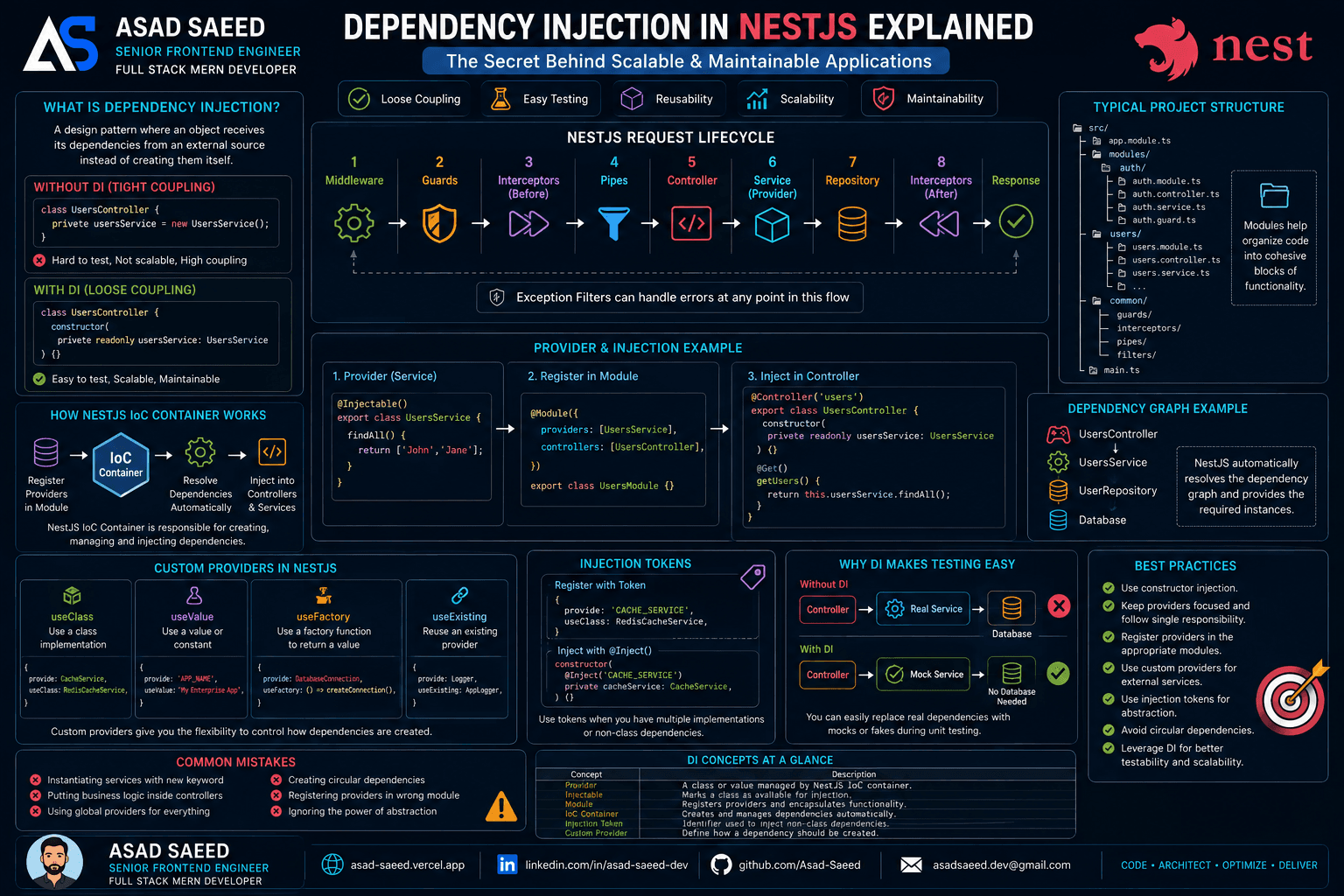
Dependency Injection in NestJS Explained: Providers, IoC Container, Injection Tokens & Custom Providers (2026 Guide)

Dependency Injection in NestJS Explained: Providers, IoC Container, Injection Tokens & Custom Providers (2026 Guide)

Learn how Dependency Injection works in NestJS, including Providers, the IoC Container, Constructor Injection, Injection Tokens, Custom Providers, and best practices for building scalable, testable, and enterprise-ready Node.js applications.

NESTJSDEPENDENCY INJECTIONNODEJS
Oct 19, 20265 min read
Read
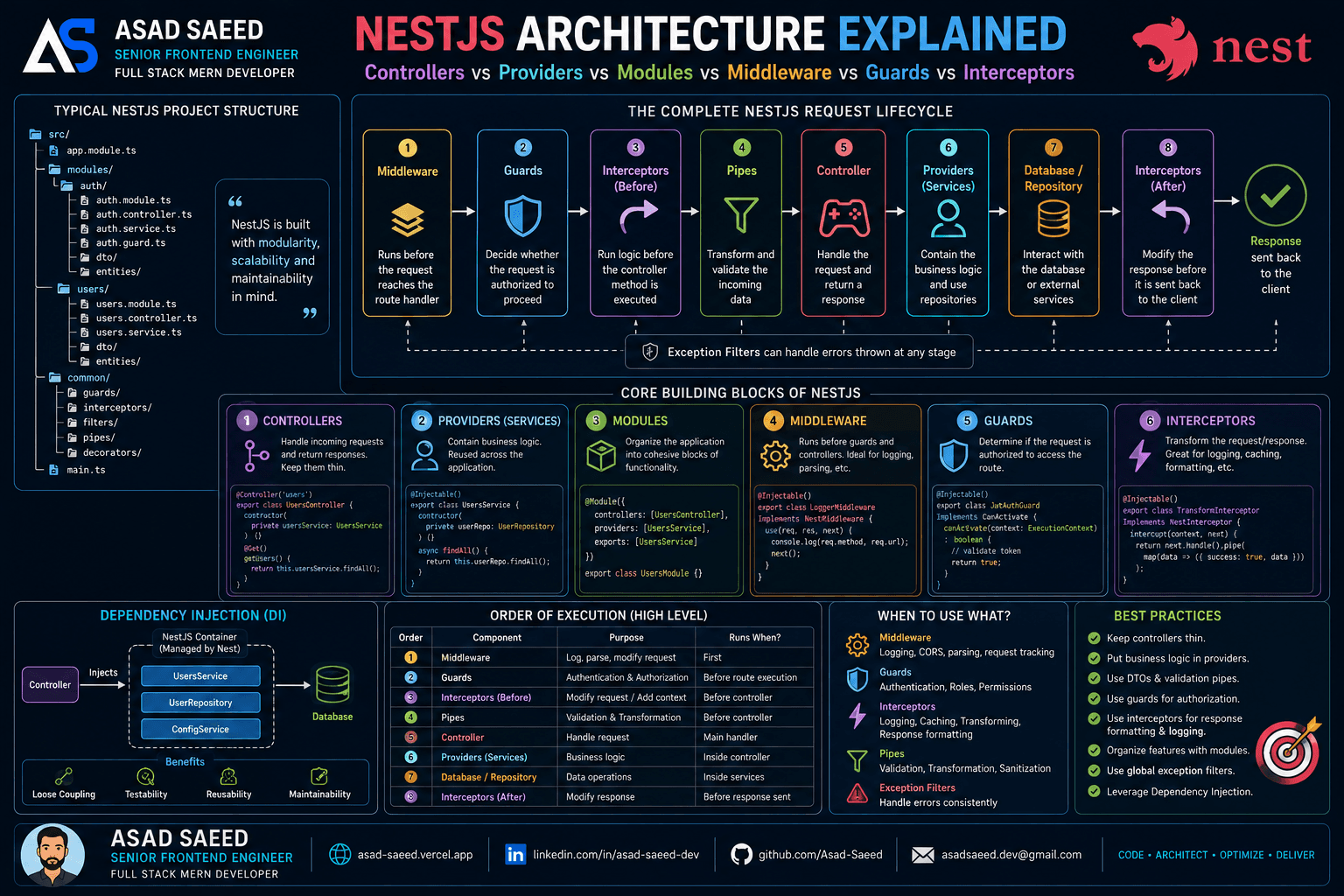
NestJS Architecture Explained: Controllers, Providers, Modules, Middleware, Guards & Interceptors (2026 Guide)

NestJS Architecture Explained: Controllers, Providers, Modules, Middleware, Guards & Interceptors (2026 Guide)

Master the NestJS architecture by understanding Modules, Controllers, Providers, Dependency Injection, Middleware, Guards, Pipes, Interceptors, and Exception Filters. Learn the complete NestJS request lifecycle and build scalable, production-ready backend applications.

NESTJSNODEJSSOFTWARE ARCHITECTURE
Aug 5, 20266 min read
Read
F
Made with ❤️ by Asad Saeed
© 2026 · Asad Saeed
Made with ❤️ by Asad Saeed
F
11 min read
Read
Dependency Injection in NestJS Explained: Providers, IoC Container, Injection Tokens & Custom Providers (2026 Guide)

Dependency Injection in NestJS Explained: Providers, IoC Container, Injection Tokens & Custom Providers (2026 Guide)

Learn how Dependency Injection works in NestJS, including Providers, the IoC Container, Constructor Injection, Injection Tokens, Custom Providers, and best practices for building scalable, testable, and enterprise-ready Node.js applications.

NESTJSDEPENDENCY INJECTIONNODEJS
Oct 19, 20265 min read
Read
NestJS Architecture Explained: Controllers, Providers, Modules, Middleware, Guards & Interceptors (2026 Guide)

NestJS Architecture Explained: Controllers, Providers, Modules, Middleware, Guards & Interceptors (2026 Guide)

Master the NestJS architecture by understanding Modules, Controllers, Providers, Dependency Injection, Middleware, Guards, Pipes, Interceptors, and Exception Filters. Learn the complete NestJS request lifecycle and build scalable, production-ready backend applications.

NESTJSNODEJSSOFTWARE ARCHITECTURE
Aug 5, 20266 min read
Read
F
Made with ❤️ by Asad Saeed
© 2026 · Asad Saeed
Made with ❤️ by Asad Saeed
F